
Managing the alignment of items in a list can quickly become complicated, especially when several columns are needed. The list can then take on the appearance of a table without borders. The best way to manage this type of text block in InDesign is to work with the tab options. Here is how to use this simple yet powerful tool (all actions described apply only to selected text, or to the line on which your text cursor is placed).
(This article is aimed at graphics professionals)
Step 1 – Type your list…
… separating columns with tabs (the arrow above the Caps Lock key) and rows with paragraph breaks. To separate the last column from the second-to-last, use a right-indent tab (Shift+Tab).
Once your text block is complete, open the tab options window (Ctrl+Shift+T). For simplicity, consider showing hidden characters (Ctrl+Alt+I) as in the example below.
Step 2 – Managing tab width
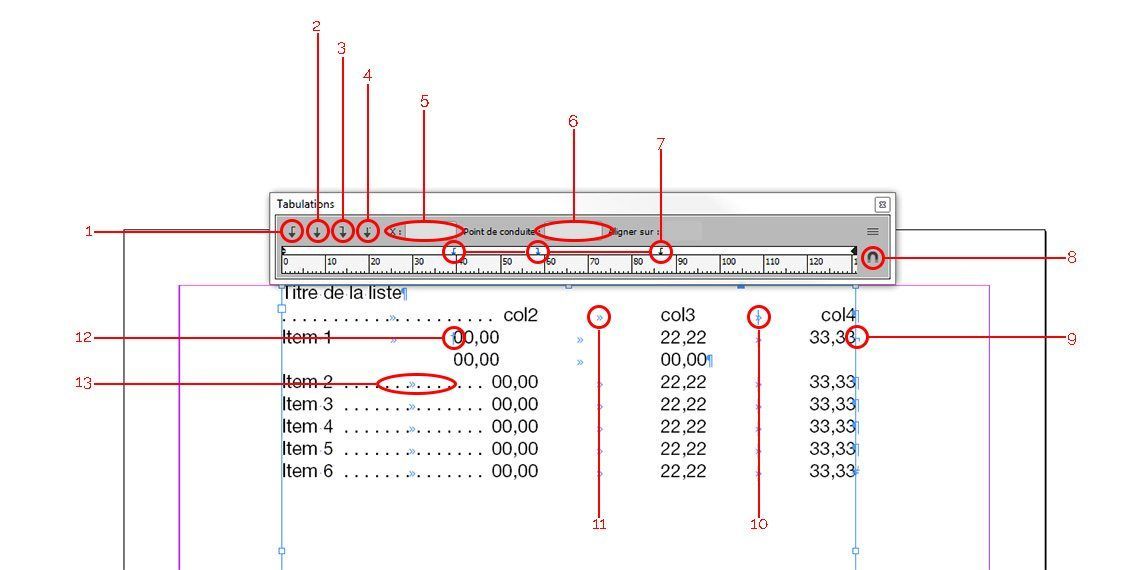
To manage this option, you have a ruler the width of the text block. If you have moved the window away from your block, you can use the magnet (8) to snap the window back onto the block.
By clicking in this ruler, you will place arrows (7) that define the width of the tabs. The leftmost arrow defines the width of the first tab, and so on. For greater precision, you can select an arrow by clicking on it, then define its exact position by typing a distance in the "X" field (5).
Step 3 – Managing text alignment
By default, text will be left-aligned (arrow 1). To change this, select the corresponding arrow on the ruler, then click on the appropriate arrow type on the left side of the options window: 1 = left-aligned / 2 = centred / 3 = right-aligned / 4 = aligned on the decimal tab.
This last arrow allows you to align the tab at a position of your choice, using the "Align on" field on the right. For example, in the image above, if the last arrow were a type 4 arrow, the tab would be aligned on the comma of the numbers in column 3.
Since the last column is defined by a right-indent tab (10), the text is right-aligned, flush with the right edge of the text block. If you do not want right-aligned text at the end of the line, you should use a regular tab (11) with the appropriate arrow. The disadvantage is that you will need to define the correct distance from your block, which is automatic with a right-indent tab.
Step 4 – Managing leader characters – Optional
Select the appropriate arrow, and define a leader character using the dedicated field (6) so that it repeats across the full length of the corresponding tab.
In our example, a full-stop leader character is defined on the second arrow; you can see it at the start of line 2 and after items 2 to 6 (13). Since no leader character is defined on the other arrows, nothing appears. A leader character is always one or more characters. Most commonly it is a full stop "." or a dash "_", but it could equally well be the word "yoghurt", if that is what is typed in the "Leader character" field.
Step 5 – Managing indents and line breaks – Optional
As with any text block, you can manage the spacing between paragraphs and use forced line breaks (Shift+Enter) (9) and return to this point (Ctrl+*) (12) as required.
Conclusion
While this tool can seem daunting at first, it becomes an invaluable ally as soon as you have long price lists or simple borderless tables to integrate into text. It is typically an indispensable tool for laying out a restaurant menu or a bar's drinks list. It is useful when you find yourself somewhere between a list and a table. It offers fewer options than a table, but is quicker and more flexible to set up and modify.
YOU MIGHT ALSO LIKE
UGC, the future of marketing: how user-generated content can revolutionise your marketing strategy
by Yumea, 7 March 2023
UGC (User Generated Content) is changing the game in the world of marketing. With the rise of social networks and content-sharing platforms, consumers have become content producers in their own right... READ MORE
Category: News , Becoming visible online , Social media
Comments: 0
How to use Instagram to reach your audience and drive traffic to your site?
by Yumea, 1 February 2023
Social media has become an indispensable tool for businesses looking to reach their target audience and drive traffic to their website. With more than 3.8 billion active users... READ MORE
Category: Becoming visible online , Instagram , Social media
Comments: 0
7 artificial intelligence (AI) tools to know in 2023
by Yumea, 12 January 2023
In 2023, there are many sites that use artificial intelligence (AI) to help users write content and generate images. If you are looking for tools to help you write... READ MORE
Category: News
Comments: 0