
In an InDesign document, creating a table is often very useful — even necessary — for your layout. Yet this powerful tool can seem difficult to manage at first glance. Here is a guide to the most useful options. All the actions described apply only to the selected cells.
(Article aimed at designers)
Creating the table
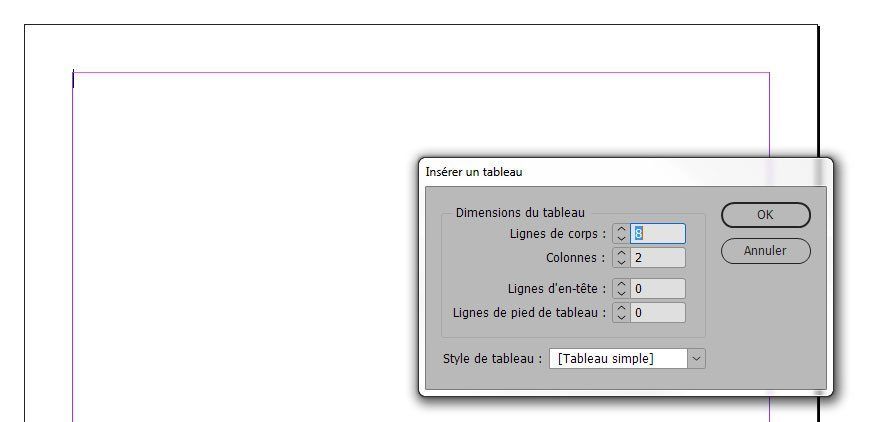
To create a table (always within a text frame), place your text cursor where you want the table to appear, then from the top menu, click "Table > Insert Table". The options window shown below opens, allowing you to define the number of rows and columns in the table, and its style (which works like paragraph / character styles, etc.).
Formatting the table
Once your table has been created, you still need to fill it with content — and above all make it look good. To do this, simply select rows, columns, or the entire table to modify them. Using the Type tool, place your cursor at the edge of the table until it changes into a large black arrow. Pointing downwards selects the column; pointing to the right selects the row; pointing diagonally at the corner of the table selects the entire table. To select one or more specific cells, place your text cursor in the top-left cell of your selection and click-drag down to the right.
The toolbar
When you have selected one or more cells, the toolbar at the top of InDesign displays the corresponding tools. The image below details them — each one more useful than the last.

The left-hand section lets you format the text your cells will contain. The central section lets you manage the number, arrangement, and colours (fills and strokes) of cells, or apply styles (to the table or to cells). Finally, the right-hand section lets you manage sizes: column width, row height, and cell inset spacing.
The contextual menu
It opens with a right-click. It gives you access to the table options (see below), lets you insert or delete rows/columns, merge or split selected cells, and distribute rows/columns evenly.
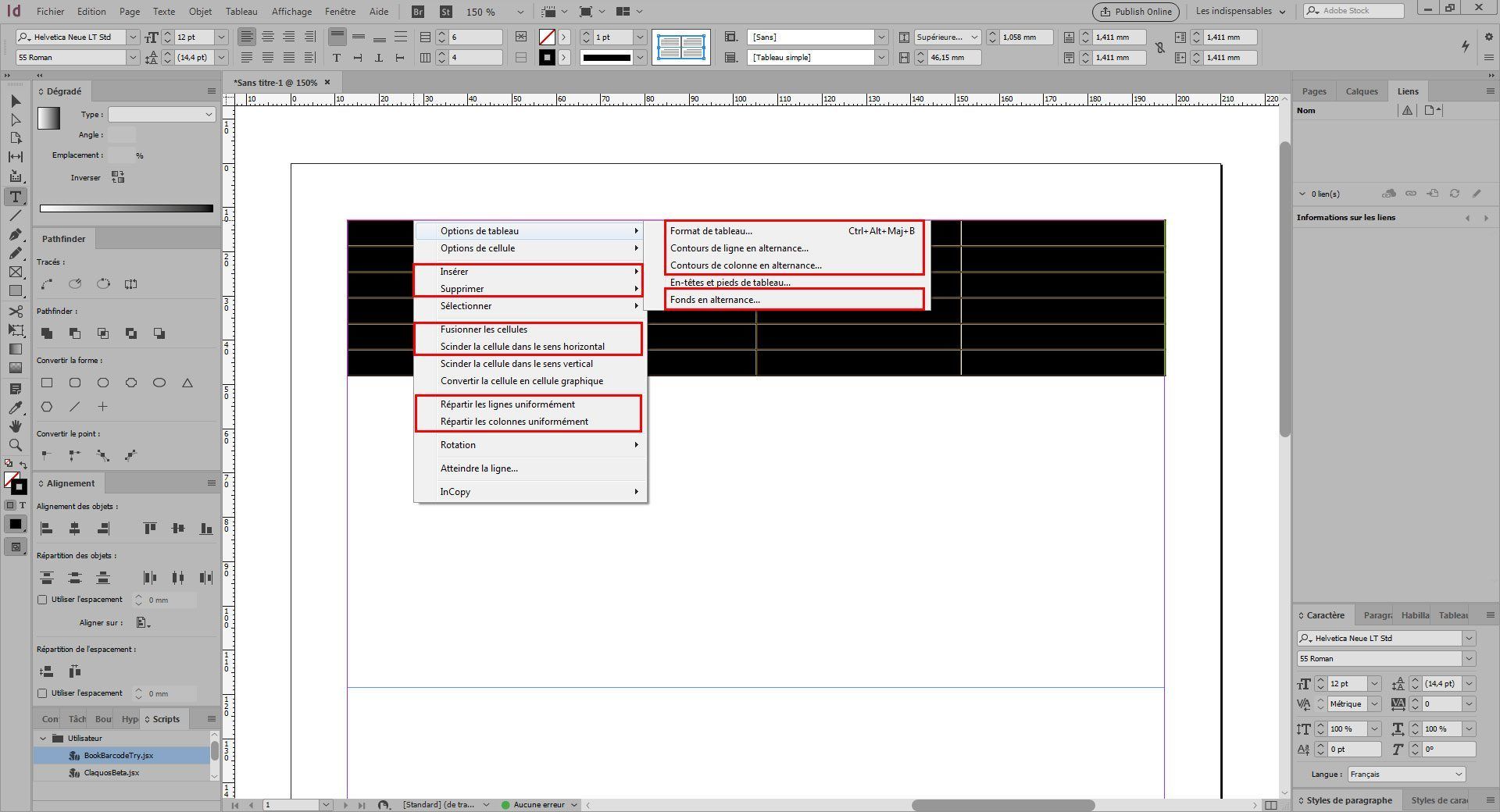
Table options
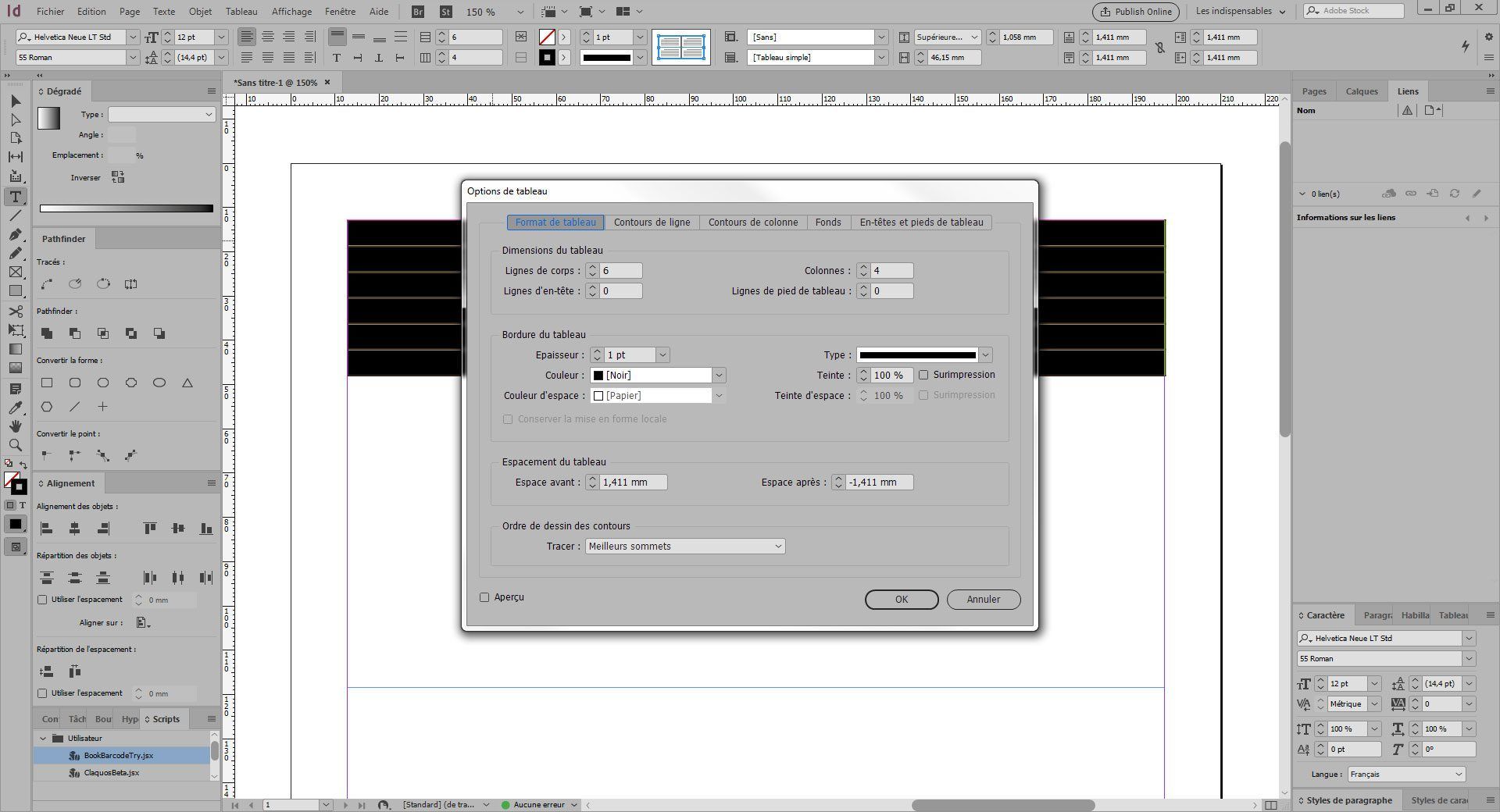
Accessed via the contextual menu (right-click). The various tabs allow you to configure:
Table setup: the number of rows and columns, the stroke colour, and spacing (cell inset).
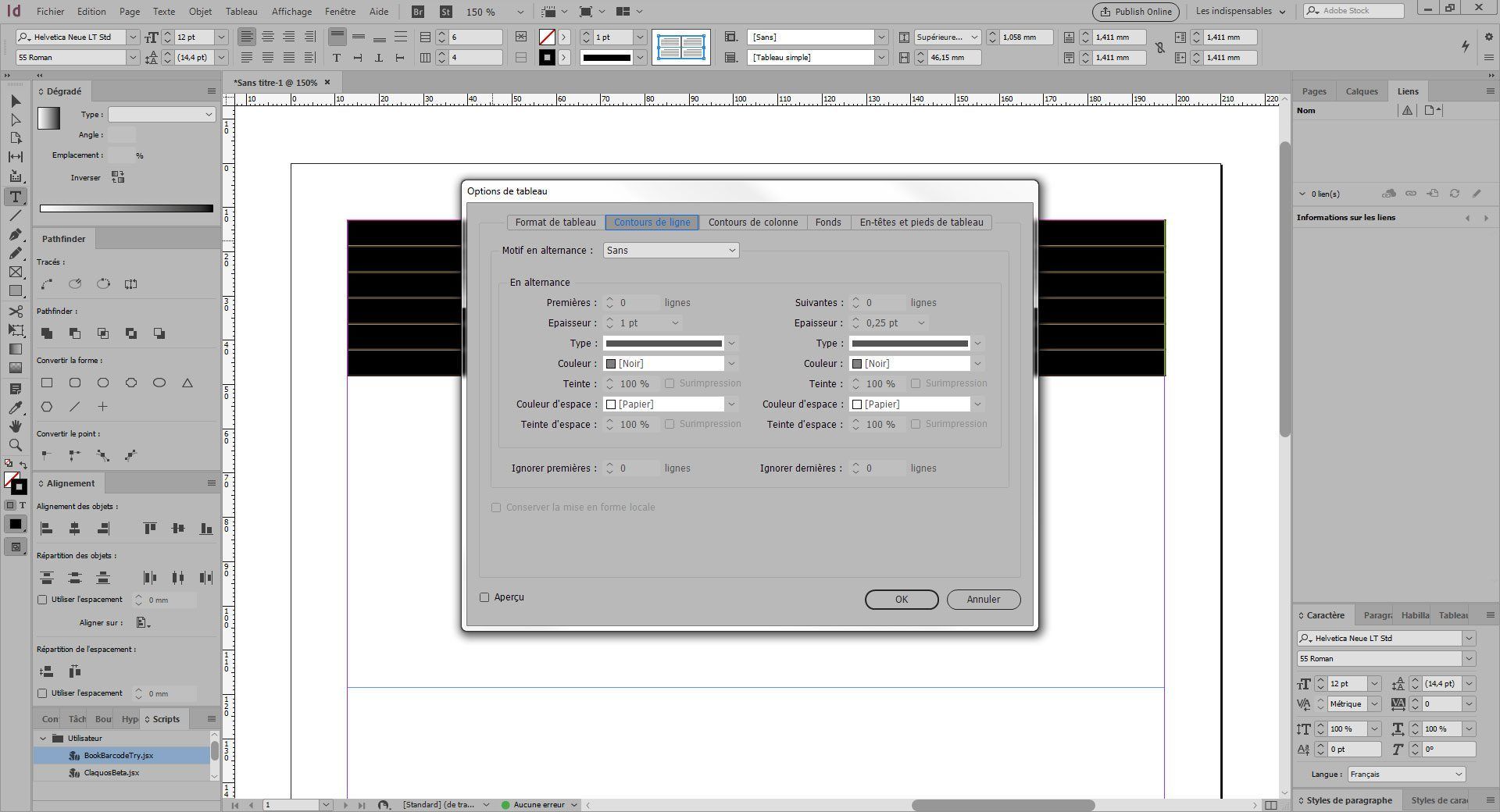
Alternating strokes and fills: these allow you to automatically alternate fill or stroke colours for rows or columns. This option is very useful for long tables, making them easier to read. You can also skip rows or columns that are not concerned, and you can always change colours manually using the toolbar (see above) if needed.
Converting text to a table
It is also possible to convert text typed on the fly into a table. This is useful when you want to enter the content first and create a table that already has the right number of rows and columns without having to count them. To do this, enter your content by separating columns with tabs and rows with paragraph returns. Then select the text to convert and from the top menu click "Table > Convert Text to Table". Check that the separators are correct and confirm — done!
Conclusion
I hope this article will be useful to all designers and help you create attractive tables more easily and quickly. Broadly speaking, it is simply a matter of knowing where the various options are located, and as with any skill, there is no substitute for practice: the more tables you make, the easier they become — so get practising!
YOU MAY ALSO LIKE
UGC, the future of marketing: how user-generated content can revolutionise your marketing strategy
by Yumea, 7 mars 2023
L'UGC (User Generated Content) ou contenu généré par les utilisateurs est en train de changer la donne dans le monde du marketing. Avec l'essor des réseaux sociaux et des plateformes de partage de contenu, les ... LIRE PLUS
Category: Actualités , Devenir visible sur internet , Réseaux sociaux
Comments: 0
Comment utiliser Instagram pour atteindre votre audience et générer du trafic vers votre site ?
by Yumea, 1 février 2023
Les réseaux sociaux sont devenus un outil indispensable pour les entreprises qui cherchent à atteindre leur audience cible et à générer du trafic sur leur site web. Avec plus de 3,8 milliards d'utilisateurs actifs de ... LIRE PLUS
Category: Devenir visible sur internet , Instagram , Réseaux sociaux
Comments: 0
7 logiciels d'Intelligence Artificielle (IA) à connaître en 2023
by Yumea, 12 janvier 2023
En 2023, il existe de nombreux sites qui utilisent l'intelligence artificielle (IA) pour aider les utilisateurs à rédiger du contenu et à générer des images. Si vous cherchez des outils pour vous aider à rédiger ... LIRE PLUS
Category: Actualités
Comments: 0