
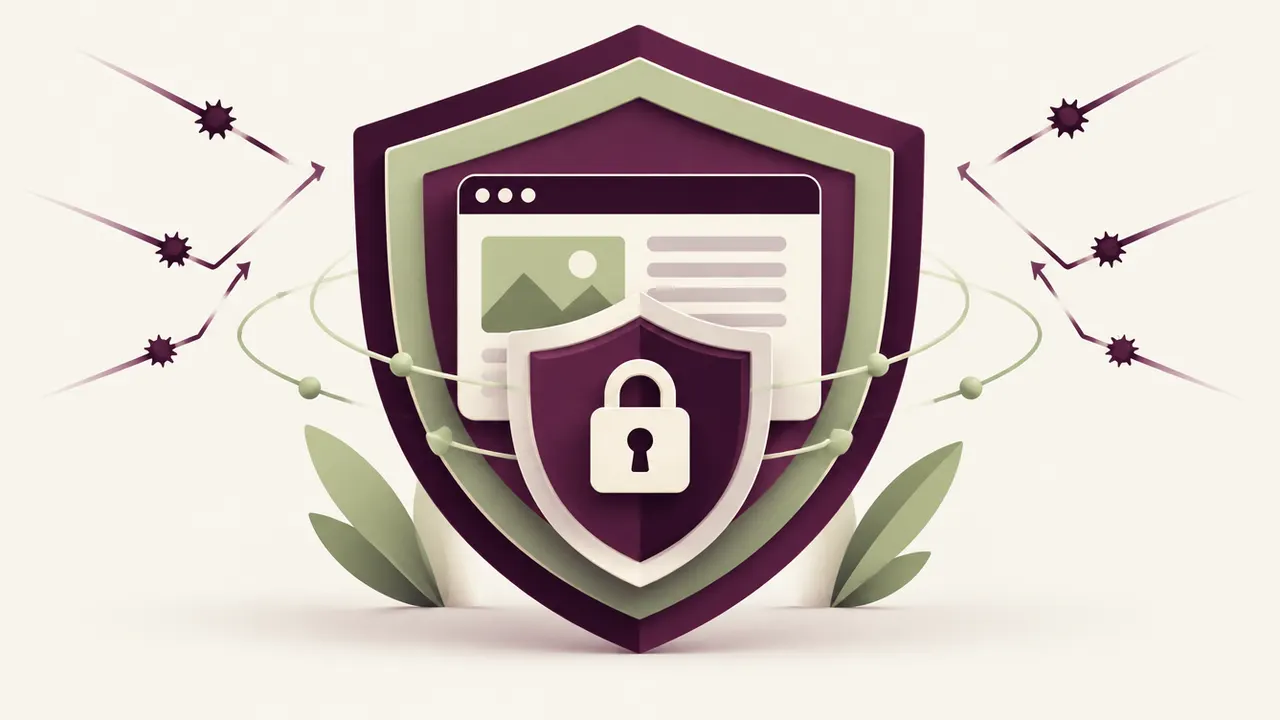
You launched your WordPress site, it runs well, and customers browse it every day. Then one day a question comes up: is it actually secure? Many small business owners find out the answer too late, right after a hack, when securing a WordPress site up front actually takes little time once the right habits are in place.
WordPress security is not a topic reserved for developers. Most of the effective measures are within reach of any site owner, as long as you know where to focus. That is exactly the point of this guide: list, in order of priority, what actually protects a site.
You do not need to set everything up on the same day. Start with the basics, then strengthen your setup step by step. That is already infinitely better than a site left unattended.
Securing a WordPress site rests on five essential pillars: strong passwords with two-factor authentication, updates applied without delay, a web application firewall, regularly tested backups, and strict limits on administrator access.
Strengthening passwords and authentication
This is the simplest measure, and yet the most often overlooked. A unique, complex password for every account (WordPress admin, hosting, FTP, database) already removes a large share of the risk. Add two-factor authentication on the admin panel: even if a password is compromised, access stays blocked without the second factor. A password manager saves you from having to remember everything, while never reusing the same login anywhere else.
It is also worth renaming the default "admin" username, which is almost always the first one automated scripts try, and limiting the number of login attempts allowed before a temporary IP block kicks in. These simple settings take only a few minutes to configure and drastically cut down on fraudulent login attempts.
Keeping WordPress, themes, and plugins up to date
Every update fixes known flaws that have been made public. A site that is not updated becomes a documented target for any bot looking for a specific weakness. Turn on automatic updates where possible, especially for minor security patches, and check the state of installed plugins at least once a month. We cover this in more detail in our article on automatic WordPress updates.
Installing a web application firewall and a security plugin
A web application firewall (WAF) filters malicious traffic before it even reaches your site. Recognized solutions like Wordfence or Sucuri offer:
- regular file scans looking for suspicious code
- blocking of repeated login attempts (brute-force attacks)
- alerts when a file is modified without authorization
- a blocklist of IP addresses known to be malicious
These tools do not replace human vigilance, but they absorb most automated attacks, which make up the vast majority of threats.
Backing up your site regularly and checking the backups
A backup is only worth something if it actually works when you need it. Schedule automatic backups, ideally daily for an active site, stored outside your main hosting environment. Test a restore from time to time to make sure it is usable. Our complete guide to WordPress backups covers the right frequency and tools for each type of site.
Limiting roles and administrator access
Every extra administrator account is a potential entry point. Only grant the administrator role to people who genuinely need it, and create limited roles (editor, contributor) for everyone else. Systematically remove the accounts of former staff or contractors who no longer work on the site.
Choosing suitable hosting and monitoring the site
Not all hosting is equal. Cheap shared hosting sometimes isolates sites from each other poorly, letting an infection on a neighboring site spread to yours. Favor a host offering per-account isolation, built-in backups, and responsive support in case of an incident. Round this out with light monitoring: a tool that alerts you when a file changes or the site goes offline.
A valid SSL certificate (the padlock icon in the address bar) is also a fundamental piece of the puzzle: it encrypts traffic between your visitors and your server, and its absence is now flagged as a risk by most browsers. Nearly every reputable host includes one for free these days.
When to call in a professional
Setting up these five pillars takes some time upfront, then ongoing follow-through: applying updates, checking backups, watching security alerts. Many small business owners prefer to hand this continuous watch over to a professional, rather than risk an oversight that ends up costing far more than a maintenance plan.
None of this needs to happen overnight. Treat it as a short punch list: passwords and two-factor authentication this week, updates and a firewall plugin next, then backups and a review of who has admin access. Within a month, your site sits well ahead of the vast majority of WordPress installations still running on defaults.
Frequently asked questions
Is a free security plugin enough? For a small site with modest traffic, a well-configured free plugin already covers a good share of the risk. For a site with high business stakes, a paid solution with active monitoring remains preferable.
Should I change my password regularly, even without an incident? A strong, unique password that is never reused elsewhere does not need to be changed on a fixed schedule. However, change it immediately if in doubt, or after a staff member with access to the account leaves.
Is WordPress security different from a custom-built site's? The principles are similar, but WordPress, being so widespread, is more heavily targeted by generic automated attacks, which makes regular maintenance even more decisive.
Want to secure your WordPress site for good? Relax by Yumea handles maintenance and security on an ongoing basis. See our plans and request a free diagnosis.