
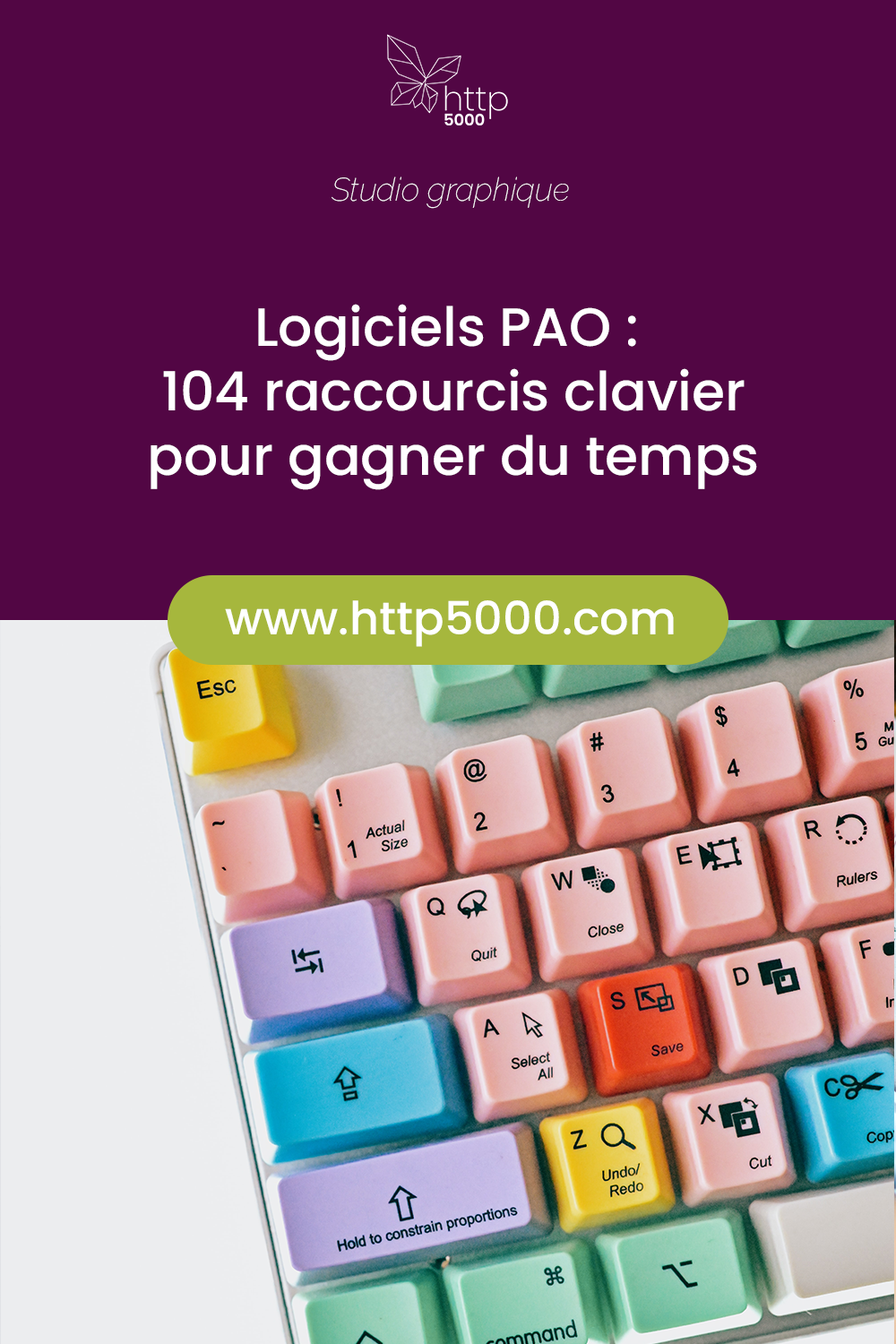
Photoshop, InDesign, and Illustrator are essentials in the daily life of a graphic designer. To simplify their use, there are some very handy keyboard shortcuts.
These shortcuts save time and improve fluidity of execution. The list below includes the shortcuts we use most often at Http5000, so it is subjective and far from exhaustive. These are shortcuts for Adobe CC on PC — there may be some differences on Mac, or depending on your version of the software.

INDESIGN
View
W = switch between "normal" and "preview" mode and back. "Preview" displays no guides and no elements of the pasteboard outside the page.
Ctrl+R = show/hide rulers. I always keep rulers visible to help with object alignment.
Ctrl+Space+click = zoom in. Click and drag to select a precise area to zoom into.
Ctrl+Alt+Space+click = zoom out
Ctrl+Scroll = horizontal scroll
Selection
Alt+Shift+Selection = release elements from the master page
Ctrl+A = select all (on the pasteboard, or all text if using the Text tool inside a text frame)
Ctrl+Shift+O = outline text
Ctrl+L = lock the selected object
Ctrl+Alt+Shift+K = clipping mask options for the selected object
Ctrl+Shift+ù = bring selection to front
Ctrl+ù = bring selection forward
Ctrl+) = send selection backward
Ctrl+Shift+) = send selection to back
Ctrl+G = group selection
Shift+Ctrl+G = ungroup selection
Document Editing
Ctrl+D = place
Ctrl+E = export
Ctrl+Alt+P = document setup
Ctrl+Alt+V = paste into (to paste content inside a frame)
Ctrl+Alt+Shift+V = paste in place (to paste content at the same position on another spread)
Ctrl+F = find/replace
Frames
Ctrl+B (text frame) = text frame options. Allows you to manage frame columns and margins, text wrap settings, baseline grid, etc.
Fitting:
Ctrl+Alt+Shift+C = fill frame proportionally
Ctrl+Alt+Shift+E = fit content to frame proportionally
Ctrl+Alt+C = fit frame to content
Ctrl+Shift+E = centre content in frame
Tools
V = Selection (black arrow)
A = Direct Selection (white arrow)
T = Type
P = Pen
M = Rectangle
L = Ellipse
G = Gradient Swatch
I = Eyedropper
Z = Zoom

ILLUSTRATOR
View
Ctrl+Y = Preview / Outline. "Outline" displays only the vectors, with no colour or stroke. "Preview" is the default display for illustrations and artboards.
Ctrl+R = show/hide rulers. I always keep rulers visible to help with object alignment.
Ctrl+Space+click = zoom in. Click and drag to select a precise area to zoom into.
Ctrl+Alt+Space+click = zoom out
Ctrl+Scroll = horizontal scroll
Selection
Ctrl+A = select all (on the artboard, or all text if using the Type tool inside a text frame)
Ctrl+Shift+O = create outlines
Ctrl+G = group selection
Shift+Ctrl+G = ungroup selection
Ctrl+7 = create clipping mask
Document
Ctrl+Alt+P = document setup
Ctrl+Shift+V = paste in place (to paste content at the same position on another artboard)
Ctrl+Alt+Shift+V = paste in place on all artboards
Tools
V = Selection (black arrow)
A = Direct Selection (white arrow)
T = Type
P = Pen
M = Rectangle
L = Ellipse
B = Paintbrush
G = Gradient
I = Eyedropper
Z = Zoom
Shift+W = Width tool

PHOTOSHOP
View
Ctrl+Alt+I = image size
Ctrl+Alt+C = canvas size
Ctrl+R = show/hide rulers
Ctrl+H = show/hide guides
Selection
Ctrl+T = free transform
Ctrl+A = select all
Layers
Ctrl+Alt+G = create clipping mask
Ctrl+G = group layers
Ctrl+Alt+A = select all layers
Tools
V = Move
M = Rectangular Marquee / Elliptical Marquee (depending on last selection)
L = Lasso / Polygonal Lasso / Magnetic Lasso (depending on last selection)
W = Magic Wand / Quick Selection
C = Crop
I = Eyedropper
B = Brush
S = Clone Stamp
E = Eraser
G = Paint Bucket / Gradient
P = Pen
T = Type
A = Direct Selection / Path Selection
TYPOGRAPHY
Special Characters
Bullet • = Alt+0149 or Alt+_ (useful for lists)
Middle dot · = Alt+0183 (useful for inclusive writing, e.g. "all professional·s")
En dash – = Alt+0150 or Alt+- (for asides and dialogue)
Em dash — = Alt+0151 or Shift+Alt+-
€ = AltGr+E
@ = AltGr+à
© = Alt+G
® = Alt+R
À = Alt+0192
È = Alt+0200
É = Alt+0201
Π= Alt+0140
œ = Alt+0156
Ç = Alt+0199
Hidden Characters
Ctrl+Alt+I = hide/show hidden characters
Ctrl+Alt+X = non-breaking space
Ctrl+Alt+Shift+M = thin (non-breaking) space
Ctrl+* = indent to here (useful for lists)
Numpad Enter = column break
Shift+Enter = forced line break
Tabs
Tab = Tab
Shift+Tab = Right indent tab
We hope these lists prove useful and save you valuable time in your graphic work!
YOU MAY ALSO LIKE
UGC, the Future of Marketing: How User-Generated Content Can Revolutionise Your Marketing Strategy
by Yumea, 7 March 2023
UGC (User Generated Content) is changing the game in the world of marketing. With the rise of social media and content-sharing platforms, users ... READ MORE
Category: News , Getting Visible Online , Social Media
Comments: 0
How to Use Instagram to Reach Your Audience and Drive Traffic to Your Website
by Yumea, 1 February 2023
Social media has become an indispensable tool for businesses looking to reach their target audience and drive traffic to their website. With more than 3.8 billion active users ... READ MORE
Category: Getting Visible Online , Instagram , Social Media
Comments: 0
7 Artificial Intelligence (AI) Tools to Know in 2023
by Yumea, 12 January 2023
In 2023, there are many websites that use artificial intelligence (AI) to help users write content and generate images. If you are looking for tools to help you write ... READ MORE
Category: News
Comments: 0