
When preparing a large document in InDesign — such as a magazine or a book — the most practical tools, and the ones you absolutely need to master, are master pages and text styles (paragraph and character styles). How do these tools work, and why are they so indispensable? Here is a brief how-to guide:
Master pages
What is a master page, and why use one?
A master page is a page template that can be applied to any page in a document, so you do not have to redo the layout or copy and paste elements from one page to another. You can save as many master pages as needed and apply them to as many pages as needed within a document.
It is therefore very practical to create master pages for all branded documents containing many pages with a similar layout, such as a magazine, a brochure, or a company report.
How do you create a master page?
Open the "Pages" panel in InDesign. Above the page thumbnails, you will find the "Master Pages" section. Double-click on the master page of your choice to edit it.
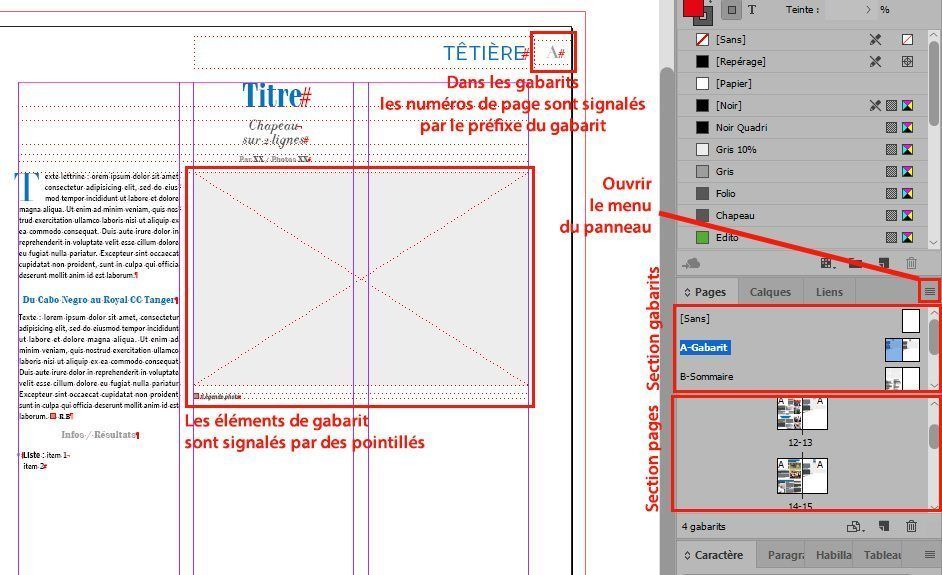
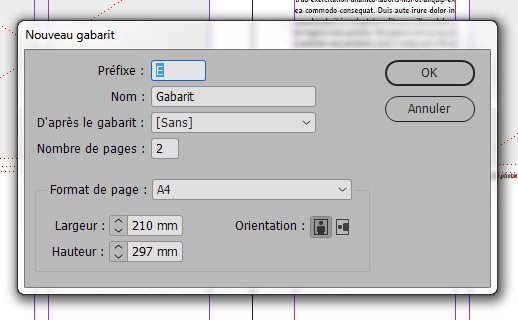
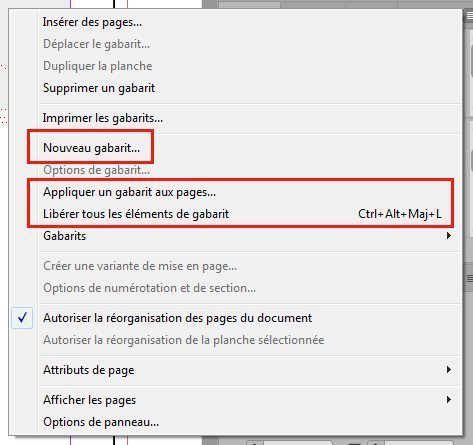
To create a new one, open the panel menu (or right-click in the master pages section) and click on "New Master Page". You can give it a prefix — which will be displayed on the thumbnails of pages to which this master is applied — name it, base it on another master page if needed, and specify the number and format of pages it will contain.
When you are in a master page, simply create your layout by adding all the fixed elements, along with guides or frames to be modified for the variable elements. The aim is to save time on layout later, so try to think of everything in advance so you do not have to make decisions when integrating the content.
Once your master page is created, simply apply it to the relevant pages. You can always modify your master page afterwards, but bear in mind that changes will apply to all pages to which the master is applied — but only to elements that have not been released from the master (see below).
Applying and modifying a master page
To apply a master page to pages, select the relevant pages in the "Pages" panel, then right-click or open the panel menu, and click on "Apply Master to Pages…". You simply need to select the master in question.
Master page elements are locked by default — you cannot modify them. That is the whole point: to maintain consistent layouts throughout the document.
To release master page elements, you can either release all elements at once (which I would not recommend) via the same "Pages" panel menu or by right-clicking on the selected pages, or release only the elements that need to be modified (your text or image frames, for example) by selecting them with the mouse while holding down the "Ctrl" and "Shift" keys (on PC; on Mac, use the "Command" (or "Apple") and "Shift" keys). These elements will move to the foreground while the master stays in the background, and they will no longer be affected by changes to the master.
Paragraph and character styles
What is a style, and why use one?
A paragraph or character style is like a master page applied to the formatting of a paragraph of text or the characters within a text. It is therefore very useful for the same reasons as a master page: when you have a branded file with titles, sub-titles, body text, quotes, footnotes, and so on… Rather than copying and pasting or redoing the text formatting for every new frame or paragraph, you prepare styles and then apply them to the relevant text.
To keep things simple, we will focus here on paragraph styles. There are also object styles (applied to frames), character styles (applied to text within a paragraph), table styles, and cell styles (within a table), all of which work in exactly the same way.
How do you create a paragraph style?
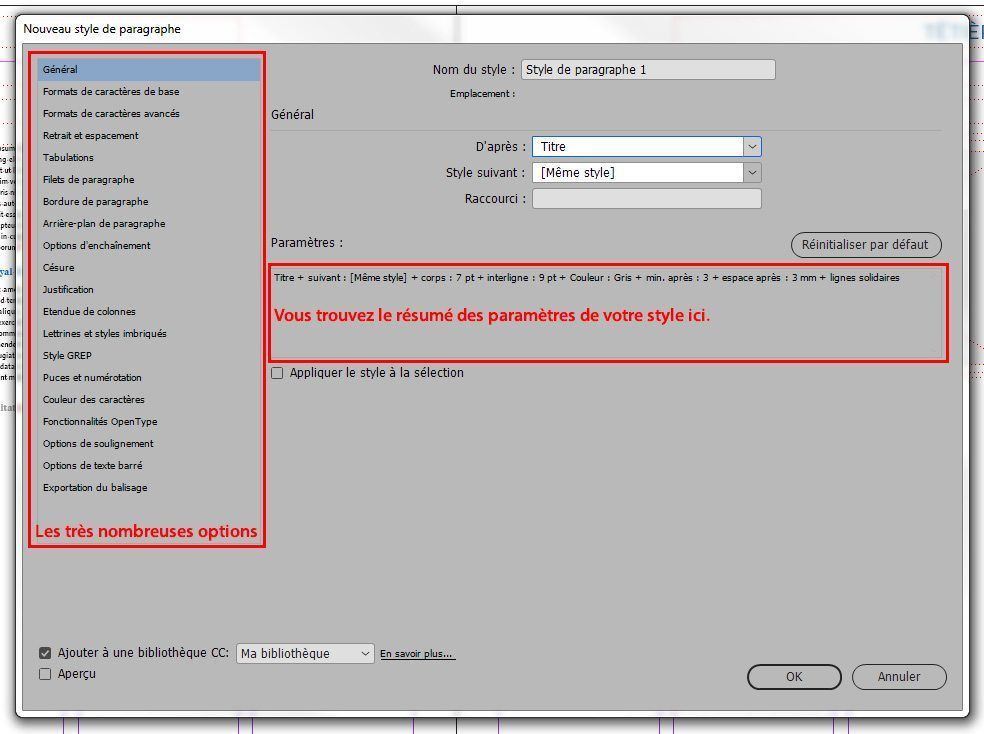
You can define all the necessary options by opening the "Paragraph Styles" panel menu and clicking on "New Paragraph Style". A contextual window opens, giving access to a very wide range of options: general options, character formats, spacing, tabs, rules, borders, backgrounds, keep options, hyphenation, justification, span columns, drop caps, bullets, colours, and more. You can configure your paragraph style down to the finest detail. To speed things up, you can also base your style on another style that is already configured.
A simpler and faster solution (though less precise) is to format a little text, then select it and click the "New Paragraph Style" button at the bottom right of the panel (next to the "delete style" button). This will save all the formatting options set during layout into the new style, while leaving all other settings at their defaults. You can always modify paragraph styles afterwards (by right-clicking on the style in question) to refine your settings if necessary. Bear in mind, however, that your changes will apply to all text to which your style is applied.
Applying a style
To apply a paragraph style, simply select the text you want to apply the style to, or place your text cursor within the relevant paragraph, and click on the desired style in the "Paragraph Styles" panel.
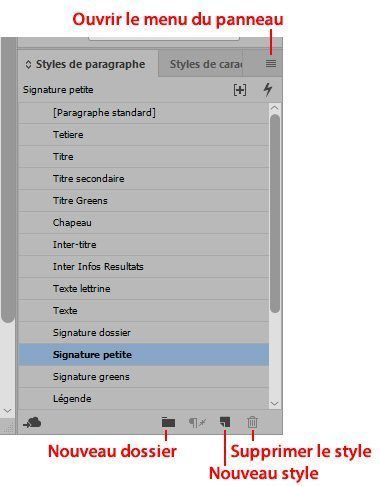
If, after selecting text, you see a "+" sign after the style name, this means local overrides have been applied. This could be a general override, or simply one or more characters within the paragraph that no longer match the style (for example, bold text within a regular style). If you want to clear these overrides, right-click on the style and click "Apply [style name], Clear Overrides".
Creating a table of contents
An additional benefit of paragraph styles is the automatic creation of a table of contents. If your titles and sub-titles each have their own dedicated style, it will be very easy to generate a table of contents automatically. Note: this should be done at the end of your layout, as page numbers do not update automatically. You will therefore need to regenerate a new table of contents, or manually update the page numbers, each time the document changes.
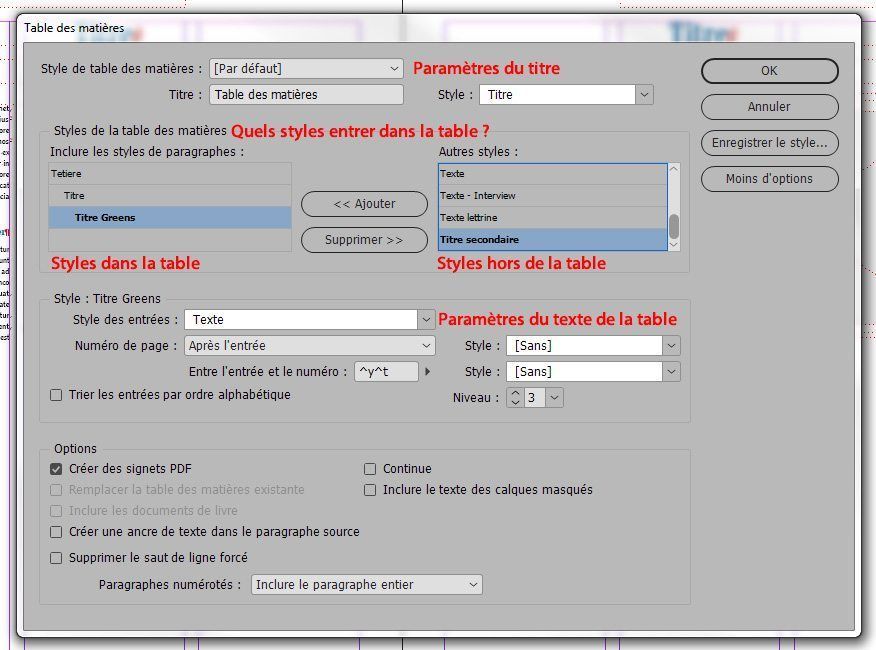
To create a table of contents, create a new text frame, or deselect the currently selected frame, then from the top menu, go to "Layout > Table of Contents…". A settings window opens: you can give your table a title and select a paragraph style for that title. Then select in the right-hand section of the window the paragraph styles to include in your table (titles and sub-titles only) and click "Add". You can then apply a style to the entries or leave them with their original style. By clicking "More Options", you can also refine the settings for the page number and even sort the entries alphabetically.
Conclusion
I hope this brief how-to guide will help you master these indispensable tools — master pages and styles. As with any document, it is worth spending time upfront on all these settings: the time invested will be paid back many times over during the layout stage that follows.
YOU MAY ALSO LIKE
UGC, the future of marketing: how user-generated content can revolutionise your marketing strategy
by Yumea, 7 mars 2023
L'UGC (User Generated Content) ou contenu généré par les utilisateurs est en train de changer la donne dans le monde du marketing. Avec l'essor des réseaux sociaux et des plateformes de partage de contenu, les ... LIRE PLUS
Category: Actualités , Devenir visible sur internet , Réseaux sociaux
Comments: 0
Comment utiliser Instagram pour atteindre votre audience et générer du trafic vers votre site ?
by Yumea, 1 février 2023
Les réseaux sociaux sont devenus un outil indispensable pour les entreprises qui cherchent à atteindre leur audience cible et à générer du trafic sur leur site web. Avec plus de 3,8 milliards d'utilisateurs actifs de ... LIRE PLUS
Category: Devenir visible sur internet , Instagram , Réseaux sociaux
Comments: 0
7 logiciels d'Intelligence Artificielle (IA) à connaître en 2023
by Yumea, 12 janvier 2023
En 2023, il existe de nombreux sites qui utilisent l'intelligence artificielle (IA) pour aider les utilisateurs à rédiger du contenu et à générer des images. Si vous cherchez des outils pour vous aider à rédiger ... LIRE PLUS
Category: Actualités
Comments: 0