
Would you like to offer quality educational content on your WordPress site? An excellent way to do so is the screencast.
Today we will explain the benefits of creating screencasts and how to add them to your site. We will also cover a few quality tools you can use to produce your screencasts.
What is a screencast?

To understand the term, a comparison with the screenshot can be helpful.
A screenshot is a capture of your screen — essentially taking a photo of your computer display.
A screencast is the same thing, but in video: it means filming your computer screen.
A screencast is therefore a recording of your screen, with audio added on top. In practice, if you record your screen, the result will be a video that shows exactly what you did on that screen (or on a portion of it, as the case may be).
It is possible to make edits or add effects afterwards, but the base video will always be your movements and actions on your screen.
The benefits of using a screencast
The screencast is a perfect educational tool, particularly when you want to explain a process to be carried out on a computer. It allows you to show your audience precisely what you are describing, in an exact and perfectly reproduced context. For example, instead of explaining "Go to the 'Plugins' section and click 'Add'", you can demonstrate that action while also explaining it on the audio track of your screencast. This combines a visual approach with an auditory one, giving your audience the choice between these two learning methods.
Another major advantage: if a viewer gets lost in your explanations or needs to clarify a point, they can pause or rewind the video to review the content that interests them.
Moreover, a screencast is not only beneficial for your viewers — it is also beneficial for you, the creator. While producing a screencast does take time, creating a detailed explanatory video remains simpler than writing a 1,500-word article on the same subject. In short, you achieve similar, if not better, educational value with a screencast, whilst investing less time.
Furthermore, if you create a screencast to address recurring questions from your clients, you will save yourself the need to repeat the solution to each one individually. You save time, and every client gets the answer they were looking for — even months or years after the screencast was made, as long as your solution has not changed in the meantime.
How to add screencasts to your WordPress site
Nothing could be simpler. WordPress natively supports hosting your media files (photos or videos, in particular).
If you are not familiar with this, an even simpler option is available: upload your video to YouTube, Vimeo, or any similar platform. These video social networks all offer embed links — a link you simply copy and paste into your article, or onto the page of your site, wherever you want the video to appear.
However, if you do not want your video to be visible to everyone, make sure to select the correct privacy settings when you upload it to YouTube.
A few tools for creating your screencasts
Screencastify
This Chrome extension lets you record a video of your activity on a Chrome tab, across all your Chrome pages, or on your entire screen.
Quick and easy to use, the free version is limited to 10-minute videos and 50 video recordings per month — which is more than sufficient if you are aiming for one or two screencasts a week, for example.
The paid version, at €23, removes these limitations.
Hypercam
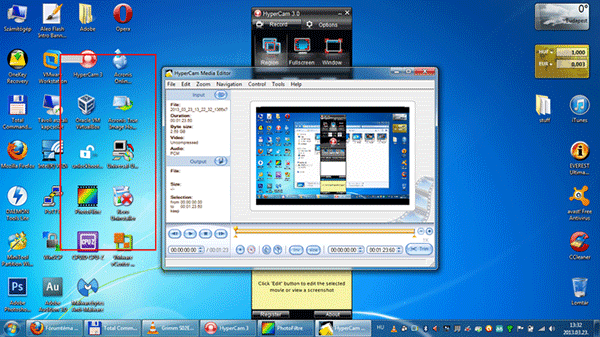
Free to use, Hypercam lets you record videos on a selected portion of your screen or on the full screen.
It also allows you to add annotations to your videos after they have been recorded.
However, this tool does not offer any preview of your screencasts and records them directly.
Wevideo
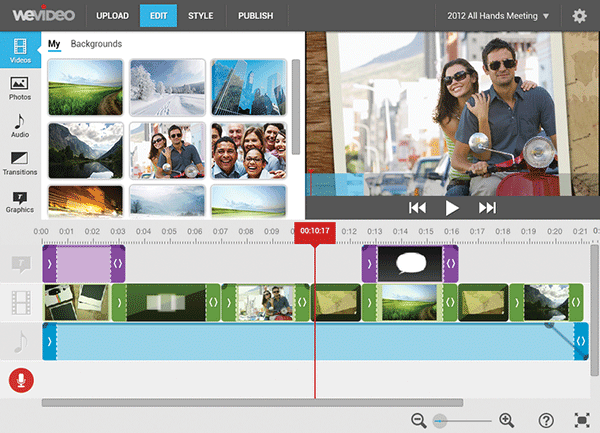
Wevideo is a fully online platform that allows you to record screencasts, edit them, integrate other videos, and control and manage audio.
Practical and intuitive, Wevideo's pricing policy is structured in such a way that it is best suited to producing very short screencasts.
(Source: Elegantthemes)