
(Updated 28/07/2017)
Given that 30% of the world's population is active on social media, one might think that email is no longer relevant. That said, email communication offers aspects that social networks simply cannot replicate. It is, in fact, an excellent way to engage in a direct conversation with your consumers — all the more so when the design of your emails is eye-catching, and the whole experience is user-focused.
We will therefore explain the value of newsletters and how to optimise them.
Free ebook: download the ABC of Inbound Marketing, a user-oriented communications strategy!
The importance of newsletters
A newsletter can look very different depending on its purpose. From a simple link back to your website through to a complex collection of products offered for sale over a set period, a season, or a promotional window — anything is possible.
There are many ways to get in touch with your consumers. But communicating by email offers a number of valuable benefits:
- Email allows you to communicate with your consumers on a case-by-case basis. This enables, where appropriate, a more personal approach to your messages.
- Using a newsletter can give you an opportunity to build a community, encouraging new internet users to invest in your business and even purchase more.
- You can offer exclusive discounts; the recipients will feel valued and will be all the more interested in your services or products, and more committed to your brand.
- Emails give you an additional opportunity to build and solidify your brand identity.
These reasons are more than sufficient to consider email as a way of reaching your users. But how do you create a newsletter that will make a real difference?
Let us now look at a few essential elements of a good newsletter.
The essential elements for a successful newsletter
Creating a newsletter is not simply a matter of writing paragraphs and adding links. You need to think of it as a cog within a larger marketing machine. The important elements for producing a good newsletter are therefore:
- Structure. Without a clear structure, your newsletter will fail to hold your consumers' attention as it should, and will miss its mark.
- A compelling headline. 80% of readers never get past the headline. It therefore needs to be powerful and convincing. Think about what particularly captures attention: numbered titles (such as a "top 10"), emotional terms, addressing the reader directly, an interrogative form, etc. We will return to these in more detail in the sections below.
- Well-written content. Each medium has its own requirements. While the rules of web copywriting apply here, writing a newsletter also has its own specific conventions. Above all, you need to be concise and give the impression of a personal email.
- Appropriate visuals. Images are important for capturing attention and making readers want to find out more. Several websites offer royalty-free photos and can be of great help.
- A call-to-action. That is, after all, the purpose of a newsletter: to provoke a reaction. You can include one or several calls-to-action in your message, depending on the structure you have chosen. A button linking to one of your web pages detailing your products or services will benefit additionally from its visual aspect, which draws the eye.
Mailchimp, a newsletter creation platform
There are many ways — more or less complex — to create a newsletter. Here we will describe a free online newsletter creation service that greatly simplifies the process of designing and sending a newsletter. In addition, it will ensure a less demanding and professional result, thanks to its creation tools, its ease of administration, and its analytics options.
MailChimp is a must in this field, used by a great many marketers. The reason is simple: it can be used for free, enabling you to send up to 12,000 emails to a maximum of 2,000 subscribers per month. More than enough to get started.
Moreover, the subscription forms included in the emails have an attractive appearance, and you can benefit from numerous reports on your campaigns.
In addition, MailChimp's drag-and-drop interface allows you to create simple templates, and the pricing for the premium version is reasonable. It is also possible to use free newsletter templates.
In summary:
- Compatible with a WordPress site.
- Allows you to send 12,000 emails to a panel of 2,000 subscribers each month, free of charge.
- Includes newsletter creation using text and image blocks that you drag and drop into place.
- Price: Free, with additional features available in a paid version.
How to create an effective newsletter with MailChimp
Here we will focus on a basic newsletter so as to concentrate on the important textual and visual elements.
To create a newsletter with a distinctive overall look or original content, you can refer to an earlier article on the subject: 10 creative ways to use MailChimp.
The first step is, of course, to have a MailChimp account and to be logged in. The following instructions cannot apply otherwise.
Choose your overall structure
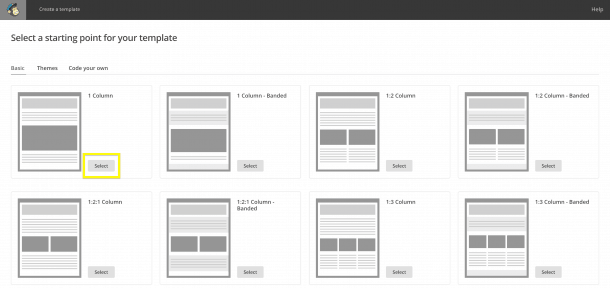
Once logged in, you will arrive on your dashboard. From there, you can manage your campaigns, administer your subscriber list, and of course create your newsletters. Click on the Template tab, then on Create Template.
If you are using MailChimp for the first time, arrows will guide you through the interface step by step.
After clicking "Create Template", the new page that appears will show you several layout options. You can also choose a ready-made design. You also have the option of coding your newsletter entirely from scratch, but that is more suited to professional developers.
Click on the layout of your choice. You will then arrive at the creation interface, which works by dragging and dropping text or image blocks.
On the left, the visual of your newsletter. On the right, the menu where you can select the elements you want to drag into your newsletter.
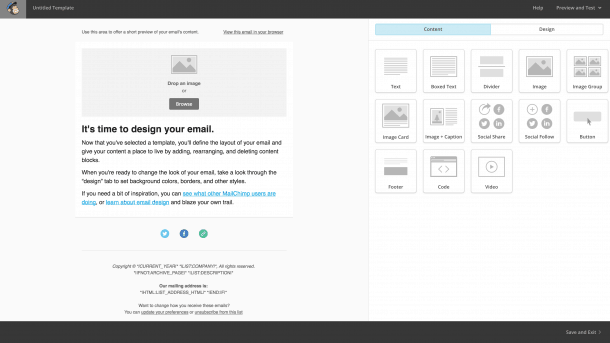
When you hover over a block, icons appear at the top of it, allowing you to edit, duplicate, or delete the block as needed.
In the right-hand section, at the top, the "Design" tab will allow you to choose your colours.
Create your headline
Simply use a text block and drop it at the top of your newsletter.
When you double-click on it, the right-hand section of your screen changes. It now resembles the interface of a word processor such as Word. Write your headline in this section; again, you will see the visual result in real time on the left-hand side.
Select your text and choose a preset text style — Heading 1 — which you will find in the "Style" section on the right.
Finally, centre your text.
That covers the "manual" part of creating a headline.
Now let us talk about creating an effective headline.
Some online tools can analyse the impact of a headline — CoSchedule Headline Analyzer, for example. However, they only exist in English and are therefore unable to analyse a title in another language. You could always propose a title in English, assess it with the tool, and then translate it for your newsletter if the tool finds it suitable. But more simply, you can also apply a few basic elements when crafting your headlines:
A numbered title
A top 10, for example, works particularly well. Internet users love numbers and lists. Changing "A few examples of effective newsletters" to "10 examples of effective newsletters" already optimises your title to some degree.
Emotional terms
The name says it all — emotional terms relate to the lexical field of feelings, often adjectives. So "10 examples of effective newsletters" could become "10 stunning / wonderful / mind-blowing / etc. newsletter examples" — your choice.
Obviously, this aspect requires genuine thought. Especially if you are in B2B, or even in B2C if you wish to convey a strict and serious image. "10 WTF newsletter examples" to describe mind-boggling newsletters, for instance, will only work if your audience is young and you opt for a friendly, even humorous brand image. For a young entertainment brand, it is ideal. For a bank or a brand that emphasises security and seriousness, it would be a disaster — unless, of course, you have carefully considered and committed to an original positioning that moves in that direction.
Along the same lines, avoid excessively over-the-top terms — your readers will place no trust in them. "The 10 best newsletters in the world that will increase your sales by 80%", to use a deliberately exaggerated example, would immediately get you categorised as spam, or even a scam attempt.
Addressing your readers directly
Just as I did in the previous sentence. So "10 ways to optimise one's newsletters" would become "10 ways to optimise your newsletters".
The interrogative form
Generally more effective than a declarative sentence, a question will attract attention more readily. With this in mind, "10 examples of effective newsletters" would become "How can you make your newsletters more effective?".
As you will no doubt have noticed, all these elements are not always compatible with one another, nor with every subject you might address in your messages. It will indeed be difficult to do a top 10 if you are sending a promotional mailing about a single, specific service (unless you can find 10 good reasons to use it!). By the same token, not every subject lends itself to an interrogative title.
Write your body text
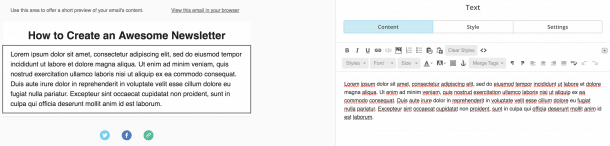
After dragging and dropping text blocks to the desired positions, you can write your main text in them.
Again, aim for text that gets to the point, is clear, and above all is interesting to your readers.
Note that you can save your work at any time — the more often, the better, on MailChimp as anywhere else.
Add images
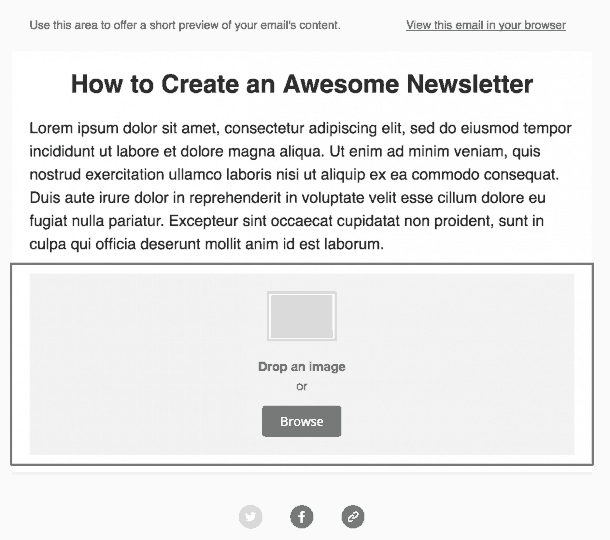
Images work the same way as text: click on an image block on the right and slide it to the left-hand side, dropping it where you want it.
You will, however, have more options here than with text — namely, adding a single image, a group of photos, or adding a caption.
To keep things simple, here we will only cover adding a single image.
Once your block is in place, you can either click "Browse" and find your image on your computer in the new window, or drag your photo and drop it directly onto the relevant block.
Again, be sure to use royalty-free photos (the Pexels and Pixabay websites, in particular, will help you here).
Add a call-to-action
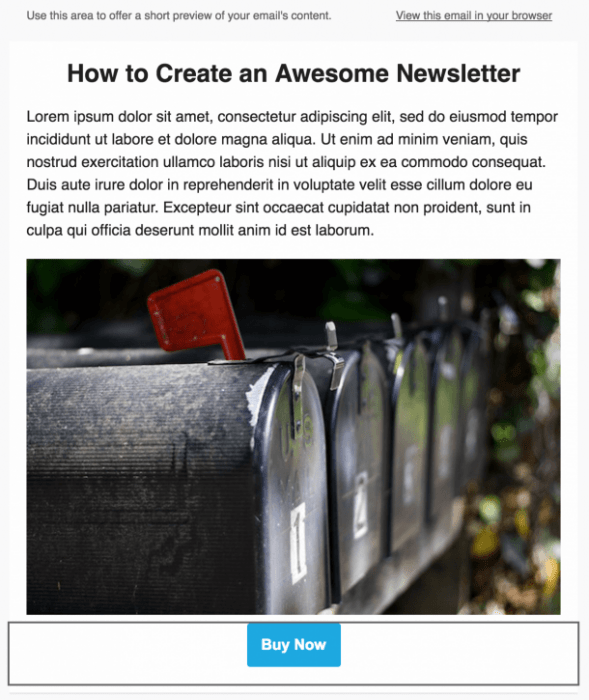
The final piece of the puzzle — and by no means the least important — is the call-to-action. Again, simply drop a "Button" block wherever you want it.
On the right, you will see new options appear: a field for the text you want to display on the button (for example "Find out more" or "Order now"), a field to decide where your button will lead (to an email address, a file to download, or most commonly, one of your web pages), and finally the URL of that web page.
Finally, save your work and preview the result with the "Preview and Test" button.
Once you are happy with the result, you can send it to your subscribers. Congratulations — you have just completed your first newsletter!
Photos and free translation from Elegantthemes.