
We recently discussed the importance of content in website creation and, more recently still, the value of local content marketing.
If you own a website, you may want to personally create your brand content and publish it yourself. And even when working with a specialist provider, you might be tempted to make a few changes on your own from time to time.
The reflex for many is to use Google Docs, on Google Drive, to write the desired content. Accessible from anywhere and presenting a familiar interface similar to Word, Google Docs are indeed highly popular for their ease of use and general practicality.
However, transferring finished content to WordPress can cause problems. A simple copy/paste can interfere with the page code and therefore undermine web SEO. Google is notoriously cautious and does not respond well to imported text that has not been properly prepared for the web.
And fixing the resulting issues, for every piece of content, can easily become time-consuming.
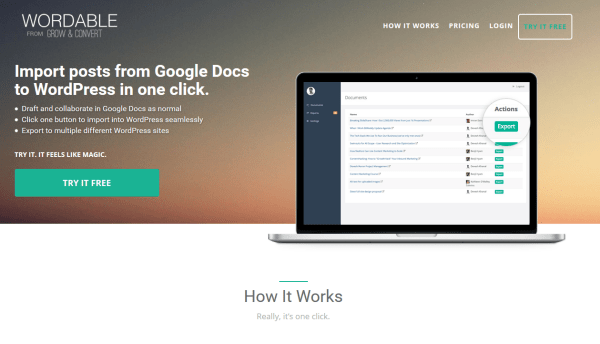
This is where Wordable comes in. A simple solution to this kind of problem. This tool lets you import content from Google Drive into WordPress — all in just a few clicks.
In practice, this means you can continue using Google Drive — and even create your content collaboratively with colleagues, for example — without worrying about how to transfer it to WordPress afterwards.
How to "Install" Wordable
Start by creating an account on the Wordable website by clicking "Try it free" in the top right corner.

You will then be asked to sign in with your Google account.
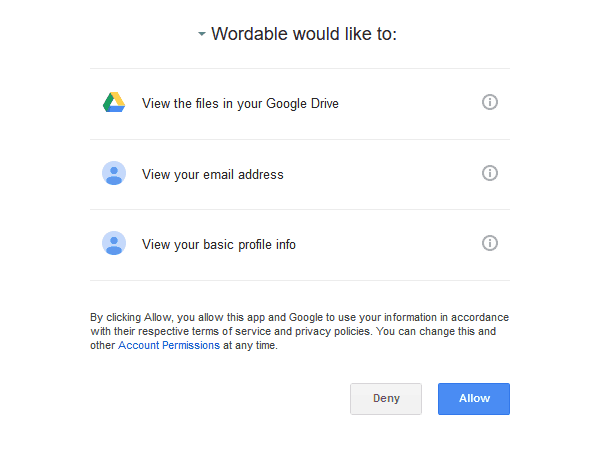
On the following screen, you need to confirm Wordable's permissions — without which the tool will not be able to work with your Drive. Click the "Allow" button at the bottom.
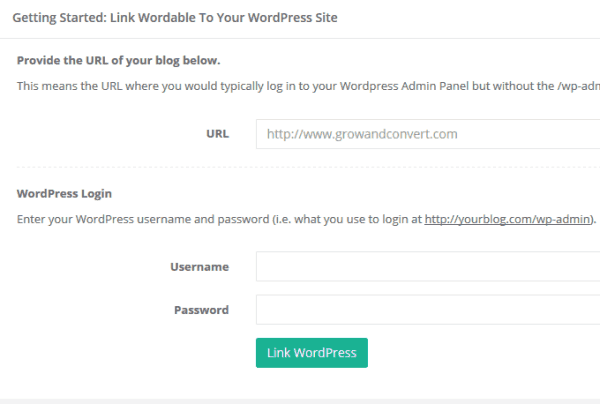
It is now time to synchronise Wordable with your WordPress site.
Copy and paste your site's address and enter your login credentials.
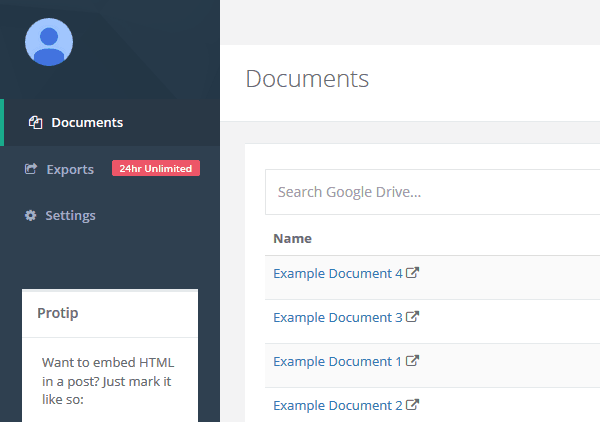
The next page is Wordable's dashboard. You will be able to see the list of documents that exist on your Drive.
From Google Docs to WordPress
You can now use Wordable.
To do so, create a new document in Google Docs (or use an existing one).
Write your content without worrying that the transfer to WordPress will disrupt your formatting.
Indeed, you can include in your document:
- Heading tags (or styles) H1, H2, etc.
- Italic or bold text
- Bulleted lists
- Hyperlinks
- Images
Once your document is complete, return to the Wordable interface, click "Documents" to refresh the page, and find your new document.
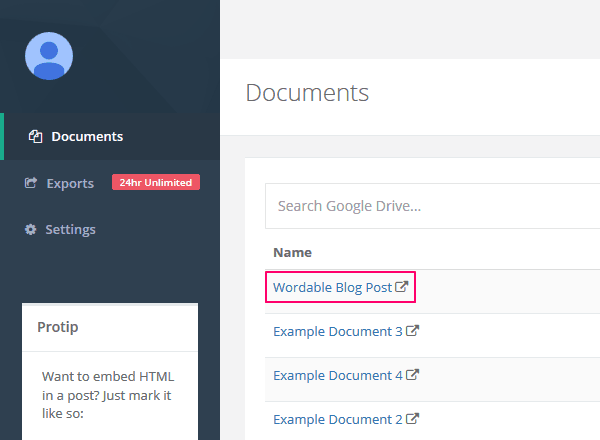
The next step is to migrate the Google Doc to WordPress. To do this, simply click "Export to WordPress".

The export takes only a few seconds. Now return to your WordPress account: your post is there!
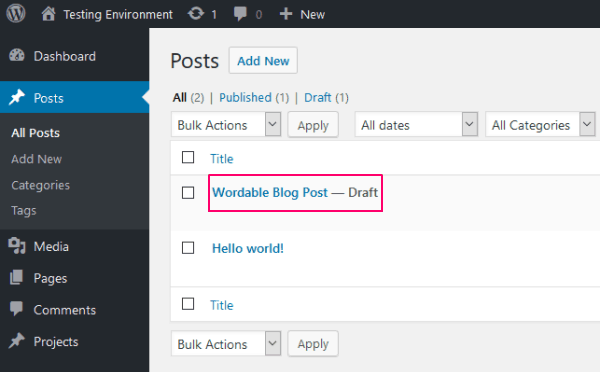
Wordable will have faithfully reproduced the file.
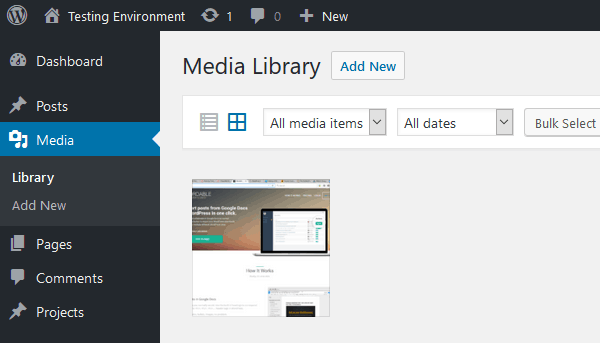
Beyond the text, Wordable will also have exported all the images to the media library.
This is one of the great advantages of this tool. Copy-pasting text and then reformatting it correctly is time-consuming. But manually uploading images one by one takes even longer! A problem that is entirely eliminated by Wordable.
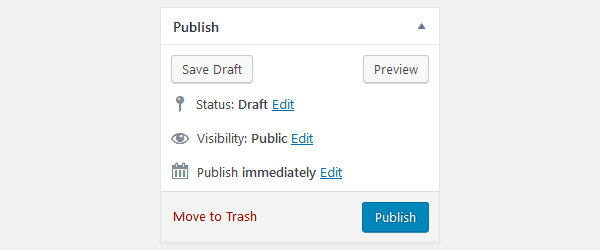
Finally, all that remains is to publish your post. This is a good opportunity to check that the content is properly formatted before showing it to your audience.
Is Wordable as Practical as Advertised?
All things considered, Wordable is very practical, as advertised. Basic text formatting is preserved (bold, italic, coloured hyperlinks). And images are automatically imported into the library.
On the other hand, for more advanced formatting (font size, colours, alignments), Wordable falls short. However, if you rarely use these options, it will not be a significant drawback.
The entire process takes only a few seconds. That said, publishing a post via Wordable does involve creating the document in Google Docs, logging in to Wordable, clicking the export button, logging in to WordPress, finding the exported post, and confirming its publication.
Of course, if you are exporting dozens of articles at once with the intention of publishing them gradually over time, this process is perfectly manageable — and indeed very convenient. On the other hand, for a single article, the export workflow can feel somewhat lengthy.
So how does Wordable differ from a simple copy and paste?
Above all, Wordable represents a genuine time saving, despite a workflow that is longer than one might initially expect.
Furthermore, Wordable does an excellent job on text formatting and layout — not to mention images that are automatically uploaded. It is therefore a very practical tool, despite the few drawbacks one might identify.