
As you well know, the internet is brimming with thousands of pieces of content — not least company news and the millions of blog posts that appear every single day.
This can make it difficult to keep track of things and to know exactly what is being said about your business. The digital world is vast. Searching manually for your brand on a daily basis may work in the short term, but it is not a sustainable solution. It is exhausting and time-consuming.
Fortunately, there is a far simpler way to obtain the information you need — automatically and free of charge. You may already be familiar with this tool: Google Alerts. Let us walk through everything about Google Alerts, from its added value to how to use it effectively.
Why Google Alerts is an essential tool
Google Alerts allows you to monitor any type of content online that is closely or loosely connected to your business and your sector.
You can choose to receive notifications daily, in real time, or once a week.
In particular, these alerts can be used to:
- Monitor what is being said about your business: alerts will show you everything said about your business online, including customer reviews. Monitoring your online reputation is essential. There is no better way to find out what satisfies your audience — and what does not. It is ideal for incorporating constructive feedback into your work, and for preventing or containing a backlash in the event of dissatisfied customers.
- Monitor what is being said about your competitors: this is just as important as knowing what is said about your own business online. You can stay informed about their latest news, their new offerings, and whether they are receiving positive or negative feedback from customers or the press.
- Monitor your sector: this can be useful for learning about the latest market trends and forecasts as quickly as possible, as well as key upcoming events. In short, everything that concerns your sector and may directly or indirectly influence or benefit your business.
Whether you are a sole trader or an SME, this knowledge of the market, the competition, and your online reputation is highly valuable. It is information that can genuinely inform your strategy.
How to set up Google Alerts
First of all, head to Google Alerts.
The interface is simple and intuitive. Nevertheless, we will walk through each step in detail here.
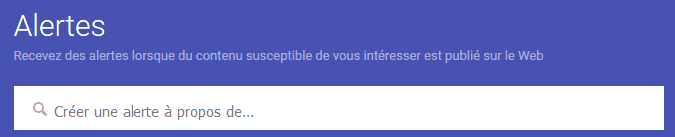
To begin, enter the term you wish to monitor in the "Create an alert about…" field.
If you are unsure which terms to use, here are a few questions that may help:
- Which competitors do you most frequently find yourself up against?
- What terms are commonly used in your sector?
- What terms might your customers search for in relation to your business? A term frequently searched by your target audience is certainly worth monitoring.
For some factual data on the most searched terms and phrases on Google, you can use Google Keyword Planner or Google Trends.
Here are also a few useful tricks for getting the most out of Google Alerts:
- site:yumea.fr Google Alerts: written this way, your alerts will only notify you about content from the yumea.fr website that includes the terms "Google Alerts".
- "promotional items": your Google Alerts will only include online content containing this exact phrase.
- "communication gifts" + WordPress: your alerts will only include online content containing the exact phrase "communication gifts" as well as any variation on the term WordPress.
- promotional items -pen: your Google Alerts will notify you of online content containing the terms "promotional items" that does not contain the word "pen".
Choosing your Google Alerts options
Once you have chosen the terms you wish to monitor, you can activate your Google Alerts. However, please note that each term or phrase must have its own individual alert.
Type your first term or phrase into the "Create an alert about…" field.
If you are already signed in to a Google account, your alert will automatically be sent to your Gmail address. If not, you will need to enter an email address in the field just below.
But do not create your alert just yet.
First, click on "Show options", next to the "Create Alert" button.
Several options will then appear.
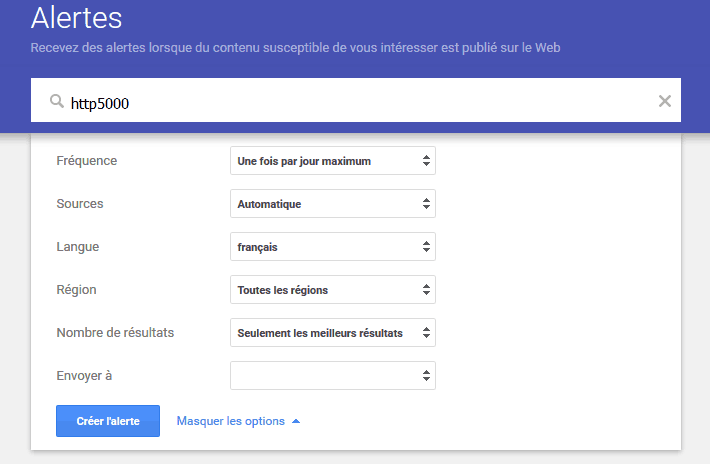
Here is a breakdown of what you can customise in your Google Alerts:
- Frequency: as mentioned earlier, you can receive your alerts "As it happens" (in real time), "At most once a day", or "At most once a week". For the most important terms (especially those relating to your brand), we recommend opting for "As it happens" or "At most once a day". For less important terms, you can opt for "At most once a week" to avoid being inundated with emails.
- Sources: here you can choose the sources you wish to monitor. To cast the widest possible net, you can leave Sources set to "Automatic". Depending on your needs, however, you can also restrict your Google Alerts to "News", "Blogs", "Web", "Video", "Books", "Discussions", or "Finance".
- Language: the field name speaks for itself. This is where you choose the language of the content you wish to monitor. If you operate in an international sector, creating one alert in French and one in English can be very useful.
- Region: to monitor content from a specific geographical region, this is the place to do it. You can combine this field with the language criterion to target your alerts even more precisely.
- How many: here you can choose whether you want Google Alerts for "Only the best results" or "All results". Again, for alerts about your own brand, you will almost certainly want to receive "All results" so you do not miss anything. For less important terms, "Only the best results" will suffice.
- Deliver to: here you can choose the email address to which your Google Alerts will be sent, if you are already signed in to a Google account.
Previewing your Google Alerts
Once all your options are filled in, Google Alerts will show you a preview of the type of content you will receive by email.
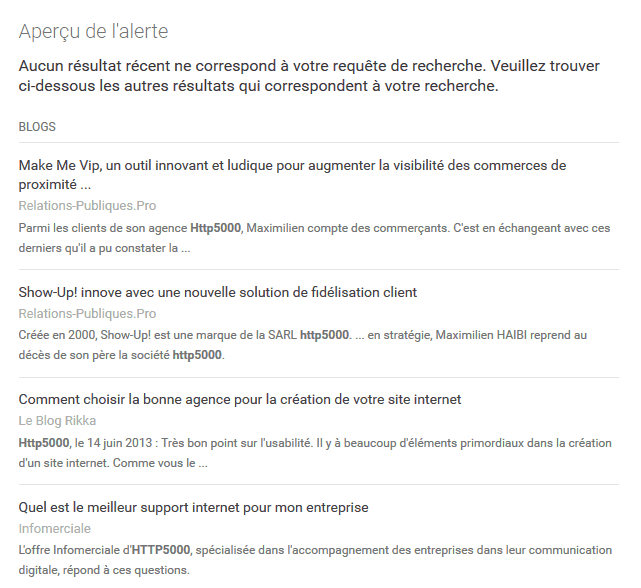
If you are satisfied with the result, simply click the blue "Create Alert" button.
Google will then begin sending you alerts by email according to your chosen criteria.
To monitor other terms or phrases, simply repeat the process as many times as necessary.
Editing or deleting existing Google Alerts
To edit or delete a Google Alert, simply return to the same page. Below the section for creating an alert, you will find all the Google Alerts you have already created.
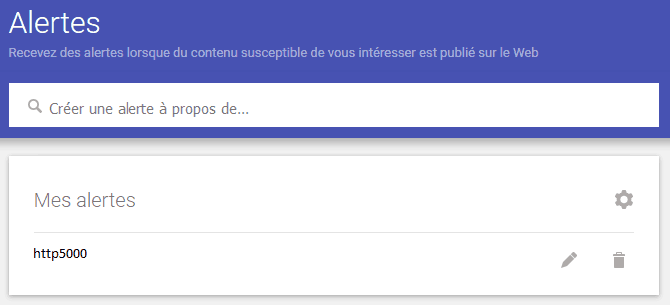
To edit a Google Alert, simply click on the pencil icon. The same options as those we have just discussed will reappear.
To permanently delete an alert, simply click on the corresponding bin icon.
Going further: social media
The only real drawback of Google Alerts is that it almost never accounts for one of the web's most important channels: social media.
Countless highly interesting conversations take place on social media every day. If you want to monitor your online presence comprehensively, you must take these networks into account.
Many tools beyond Google Alerts can help you do this — for example, Twitter Analytics, Hootsuite, Buffer, and many others.
Google Alerts: a simple and useful tool
In summary, Google Alerts is one of the simplest and quickest tools available for tracking what is being said about your business online. What is more, it is entirely free.
However, for truly comprehensive online monitoring, you will need to combine these Google Alerts with other tools that allow you to track social media. But as a starting point for basic monitoring, you will not find a more convenient or straightforward tool than this one.
One final piece of advice: be careful not to overwhelm your inbox with alerts. Receiving too much information can be just as problematic as receiving none at all. If you find yourself deleting certain alerts because you do not have time to read them, it may be a sign that you need to refine your alert criteria once again.
(Freely translated from Elegant Themes)